How To Set Metric Permissions
Control who on your team can see sensitive metrics. This setting is useful for keeping financial or executive level data out of the general team view.
Visibility Options
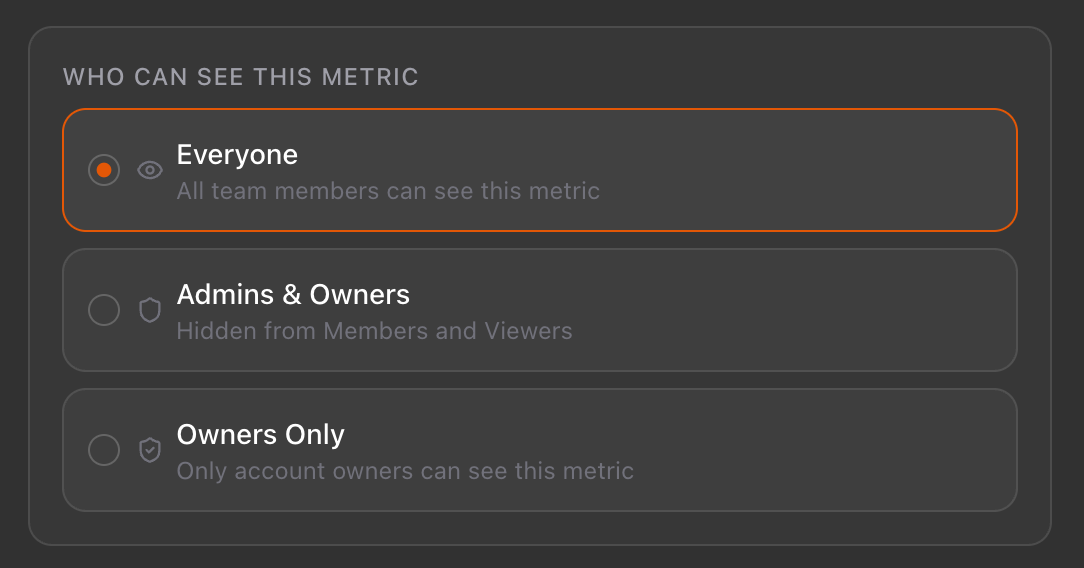
When editing any metric, you can choose one of three visibility settings:
Everyone All team members can see this metric
Admins & Owners Hidden from Members
Owners Only Only account Owners can see this metric
How to Set Permissions
Go to Settings → Metrics Library
Find the metric you want to restrict
Click the three-dot menu and select Edit
Scroll to the "Who Can See This Metric" section
Select your preferred visibility and hit Save Changes
Not Sure Who Has What Role?
Head to Settings → Users to see each team member's role at a glance.
Owner Admin Member are the three role types visibility settings map directly to these.
Tip: Visibility changes take effect immediately. Members who lose access to a metric will no longer see it in scorecards and dashboard metrics