Facebook & Instagram Integration
Connect your Facebook Pages and Instagram Business accounts to see your organic social data alongside all your other growth numbers in Precision.
What gets pulled in
Once connected, Precision syncs the following data daily:
Facebook Page insights — impressions, total page views, follows and unfollows, post engagement
Instagram account insights — daily reach, follower count, profile views, and views
Posts — Facebook and Instagram posts with per-post metrics (reach, impressions, likes, comments, shares, saves)
Instagram Stories — active stories with impressions, reach, and replies (synced every 4 hours)
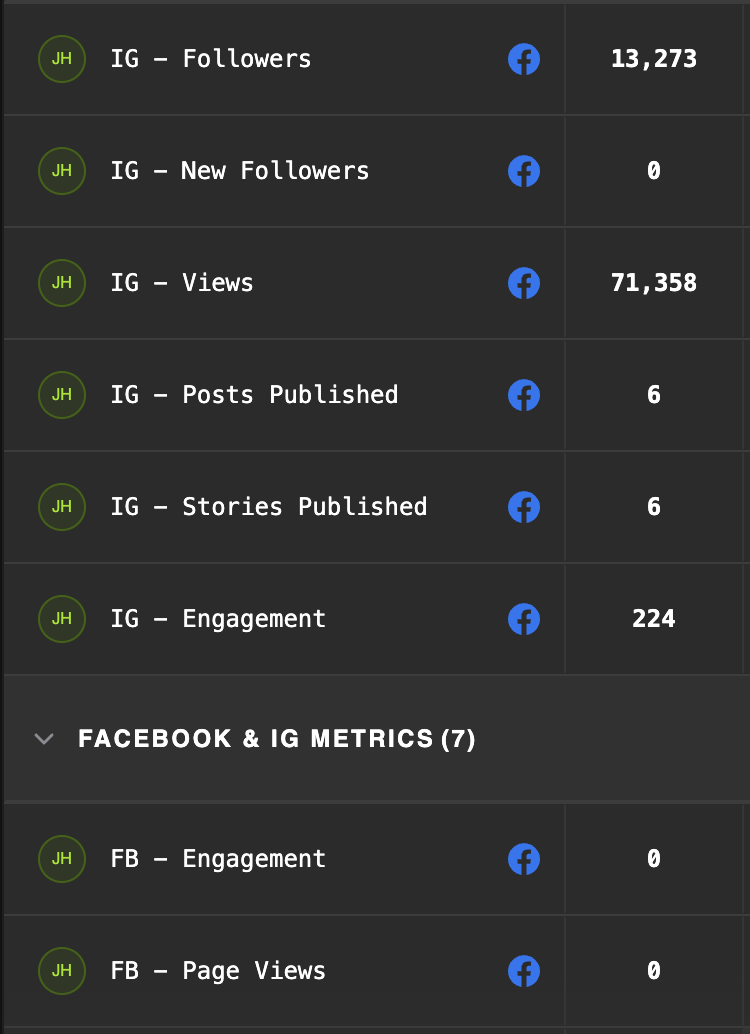
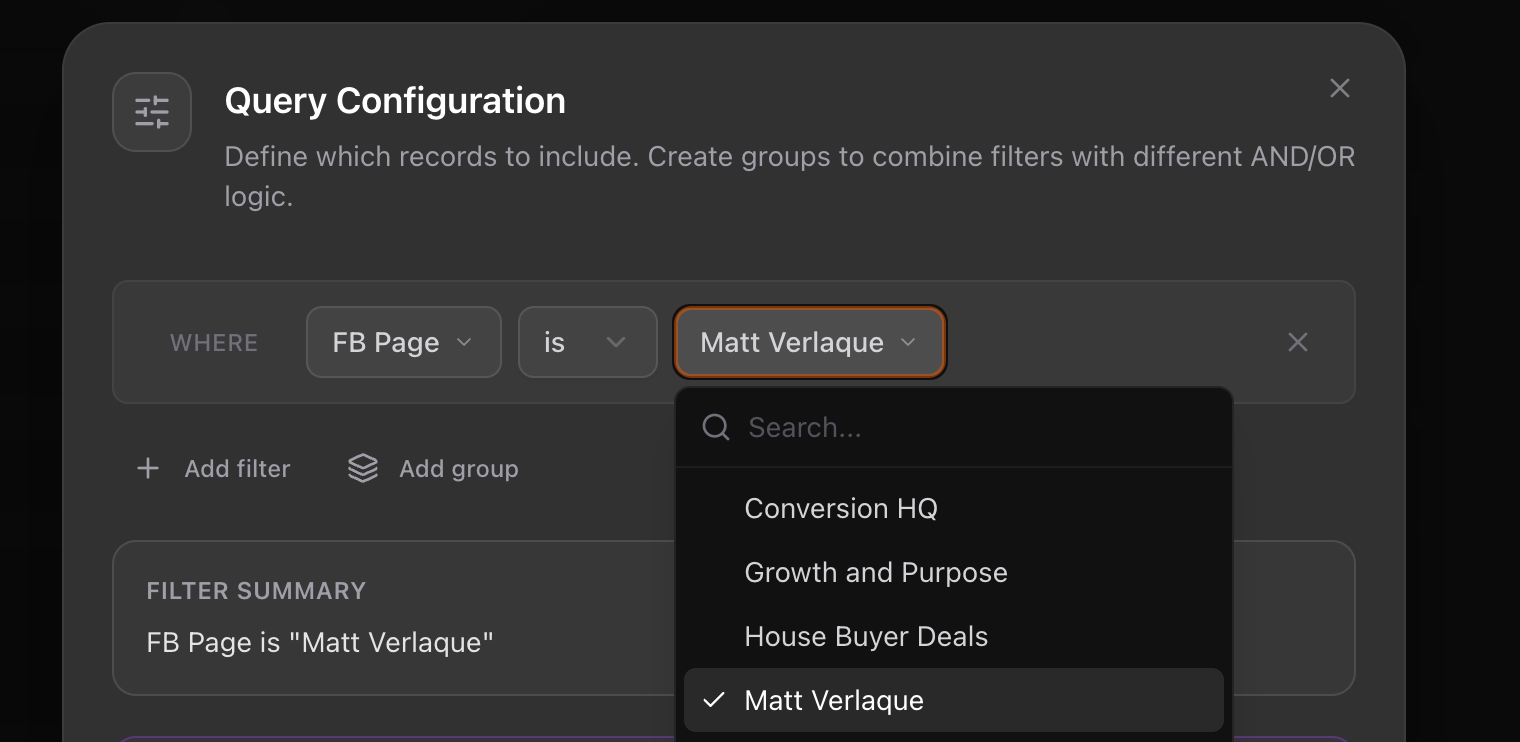
If your Facebook account manages multiple Pages, or you have multiple Instagram accounts linked, you will need to filter by the specific Page or account you want to see data for. Metrics are organized by Page and account so each one stays separate.
Requirements
A Facebook account with admin access to at least one Facebook Page
An Instagram Business or Creator account linked to your Facebook Page (required for Instagram data)
If your Instagram account is a personal profile, it will not appear. You need to convert it to a Business or Creator account in the Instagram app first.
How to connect
Go to Settings and select Data Sources.
Find Facebook & Instagram and click Connect.
You will be redirected to Facebook to log in and grant permissions. Accept all requested permissions Precision needs them to read your Page and Instagram data.
After authorizing, you will be returned to Precision. Select the Facebook Page you want to connect.
Click Continue. Your connection is now active.
Once connected you will be able to filter by all your Facebook Pages & Instagram Accounts (see below)
First sync
After connecting, Precision pulls up to 90 days of historical Facebook Page insights and 28 days of historical Instagram insights. Posts and stories sync from the current date forward. The first sync may take a few minutes to complete.
Filtering by Page or account
When building metrics or scorecards using Facebook or Instagram data, filter by the specific Page ID or Instagram account to ensure you are seeing data for the right account. Without filtering, queries that span multiple connected Pages will return combined results.
How to filter
Right click on any metic
Click
Edit MetricSelect
Configure QueryYou will have the ability to filter by Page or Account