How to Create an Annual Plan
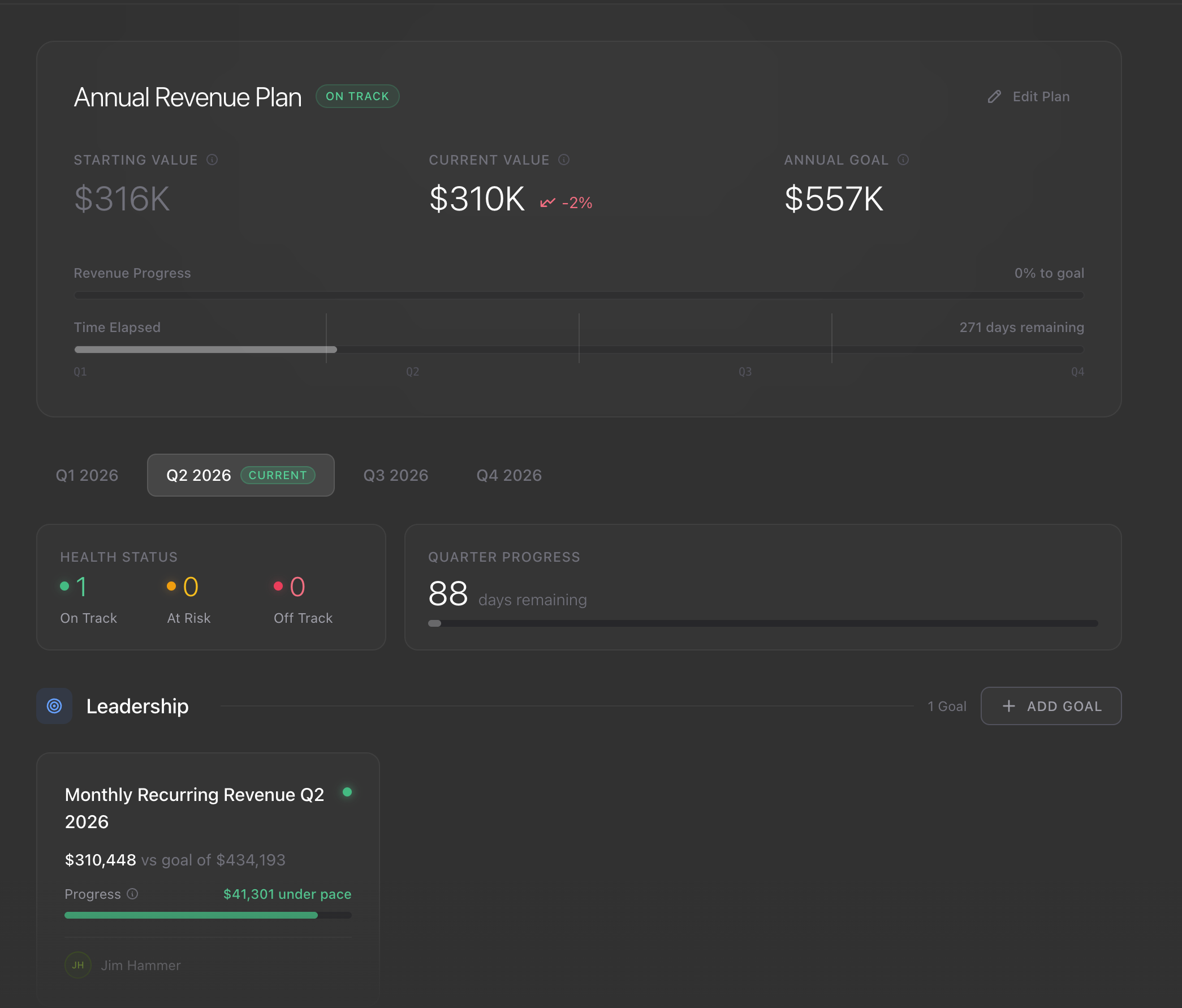
The Annual Plan is the revenue number your whole company is working toward this year. Setting it unlocks quarterly goals, the milestones your team is accountable to hit every 90 days so the annual target doesn't sneak up on you in December.
How to Create Your Annual Plan
Go to Goals in the left sidebar.
Click Create Annual Plan.
Review the starting value Precision suggests (see below for how it's calculated), then set your annual revenue target. You can accept the suggested number or type your own.
Adjust the Growth Curve slider. Moving it toward Back Loaded puts more of the target in Q3 and Q4. Front Loaded spreads more into Q1 and Q2. Most businesses start with an even split.
Review the quarterly breakdown to make sure the targets feel right for how your business actually grows.
Click Publish Plan.
Once published, Precision creates four quarterly goals automatically and starts tracking your actual revenue against them.
Where the Starting Number Comes From
When you open the Annual Plan for the first time, Precision shows you a suggested starting value. This number is not your revenue right now it is a calculated baseline that depends on what you are planning.
Planning the current year: Precision uses your revenue at the start of the year (January 1) as the baseline. For metrics that track cumulative revenue (like total annual bookings), it starts at zero. For metrics that track an average (like average deal size), it uses your January value. This reflects where your business actually was at the start of the year.
Planning next year: Precision looks for a published plan from the current year. If one exists, it uses that plan's end-of-year target as the starting point for next year. If no current-year plan exists, Precision forecasts where your revenue will be at year-end using your last four months of growth data, then uses that projection as the starting point.
The forecast uses your actual month-over-month growth rate. To keep projections realistic, growth rates are capped. Precision will not project more than 20% monthly growth or a steeper decline than 30% per month.
Quarterly Goals Are Locked
The quarterly goals Precision creates from your Annual Plan cannot be edited directly. To change a quarterly target, go back to the Annual Plan, adjust it, and republish. Precision will recalculate the remaining quarters from today forward without changing quarters that have already ended.
Why Set an Annual Plan Before Goals
Without an Annual Plan, your quarterly goals are just guesses. The Annual Plan gives every goal in Precision a ceiling to work toward — so when your team hits their Q2 number, everyone knows it actually moved the needle on the year, not just the quarter.
Planning Future Years
Use the year selector at the top of the Goals page to switch to a future year and create a plan in advance. It becomes active when that year begins.